Record · Edit · Approve · Export · Upload
Every streamis a videowaiting to happen.
StreamFlow records from OBS, opens the recording in an editor right in your browser, and uploads it to YouTube. Scroll, and the film begins.
Free to start. No credit card needed.
How it works, from recording to upload
01 · Record
Start recording from OBS
Connect your computer once, then start and stop recording from the site, OBS or Stream Deck. The file uploads on its own when you finish.
02 · Edit
The recording lands in the editor
It opens in your browser on a timeline, with video and audio tracks. No downloads, no file transfers.
03 · Cut silences
The silences disappear
The silences are marked. Check what will be removed and approve, and they come off every track at once.
04 · Approve and export
Approve, and the file is made on the site
The editor sends it for review, and you approve or request changes. Once it's approved, the final file is created on the site.
05 · Schedule
The video waits in "Ready to upload"
Drag it to a day on the planning calendar and see the whole week in one place.
06 · Upload
And it goes up on YouTube
Upload from here, without moving files between apps. The calendar shows what's uploading and what's already live.
Illustration: you press the record key on Stream Deck, and OBS starts recording. StreamFlow Agent reports that the recording started, and the site shows "Recording now". Then the recording screen shrinks into the editor's timeline, the silences are marked and disappear from every track, and the video is approved and exported. It moves to "Ready to upload", gets dragged to a day on the calendar and goes up on YouTube.
The product
Screen by screen.
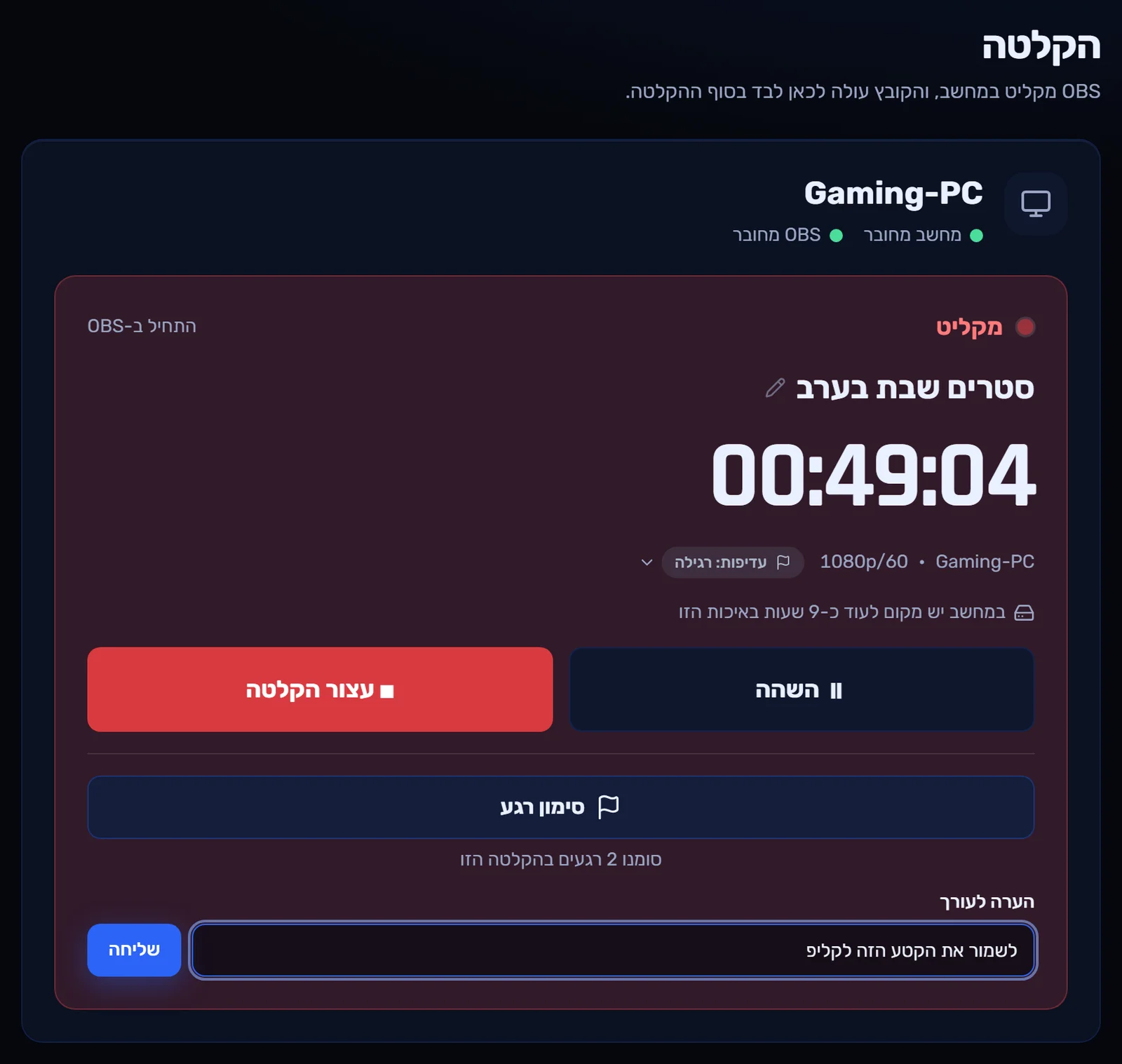
Your OBS recording runs here in real time. Mark moments and leave notes for your editor.
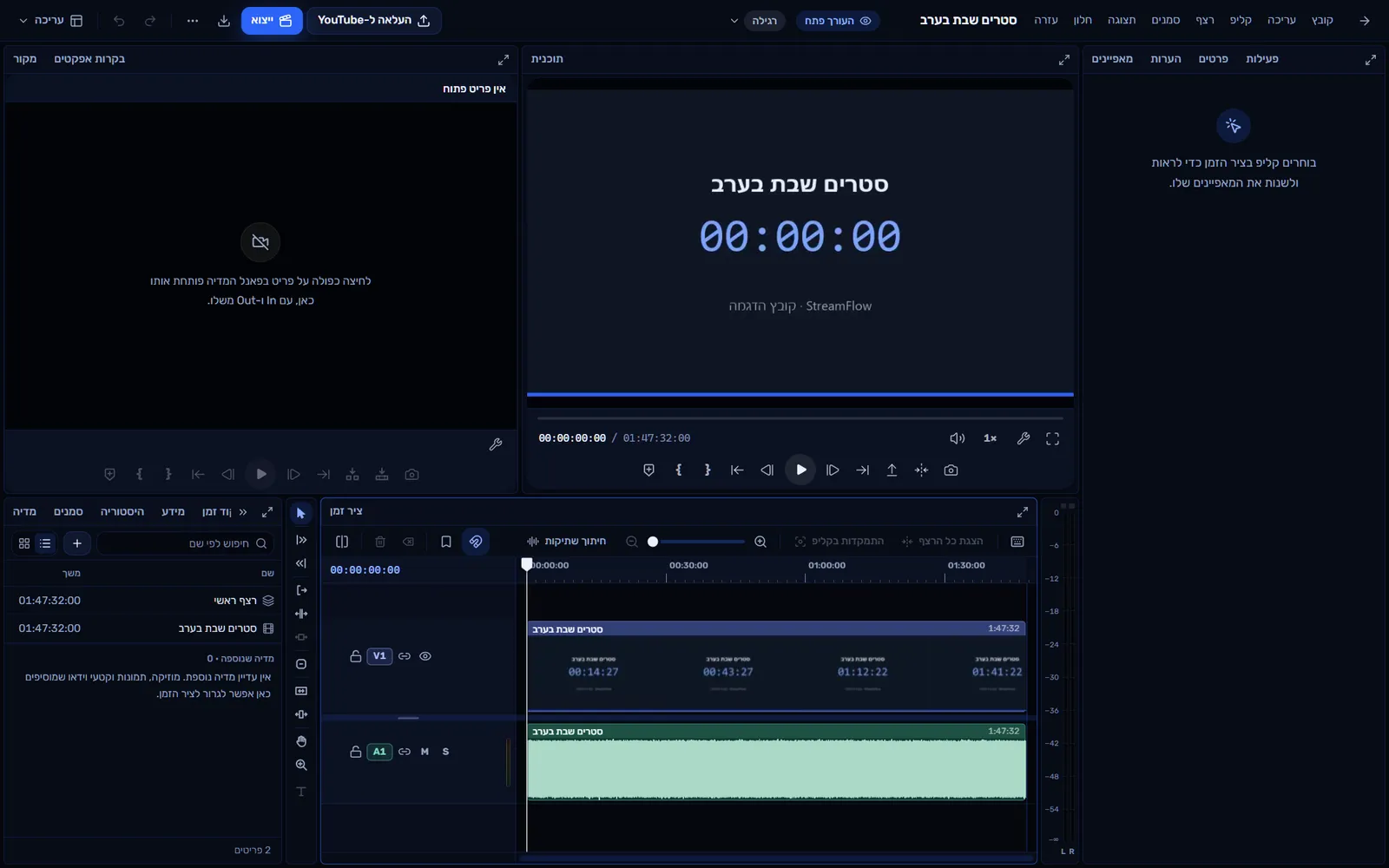
A timeline with video and audio tracks, and silence removal in one click.
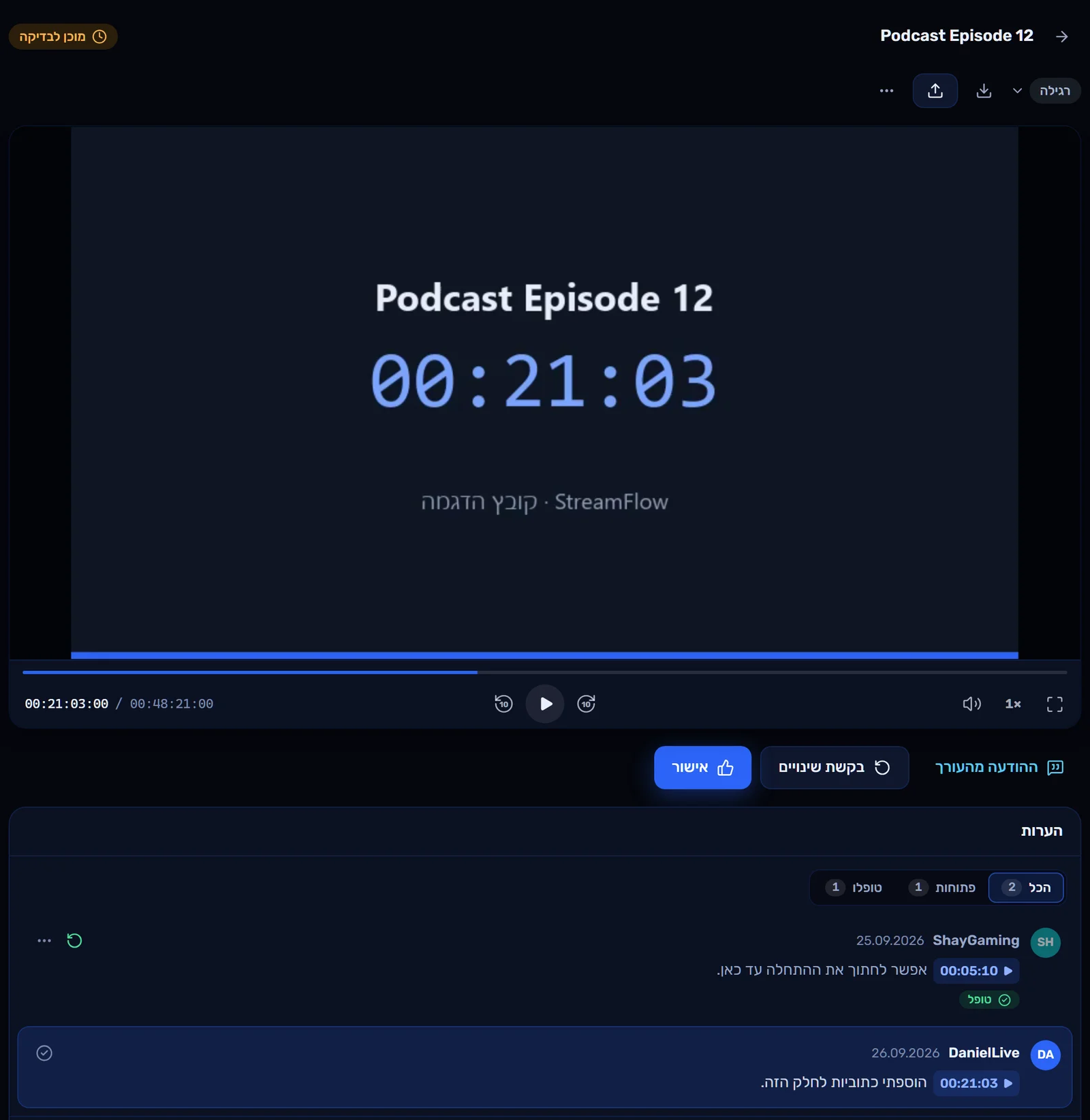
Approve or request changes in one click, with comments at exact moments in the video.
Approved videos wait here, ready to schedule for YouTube or publish now.
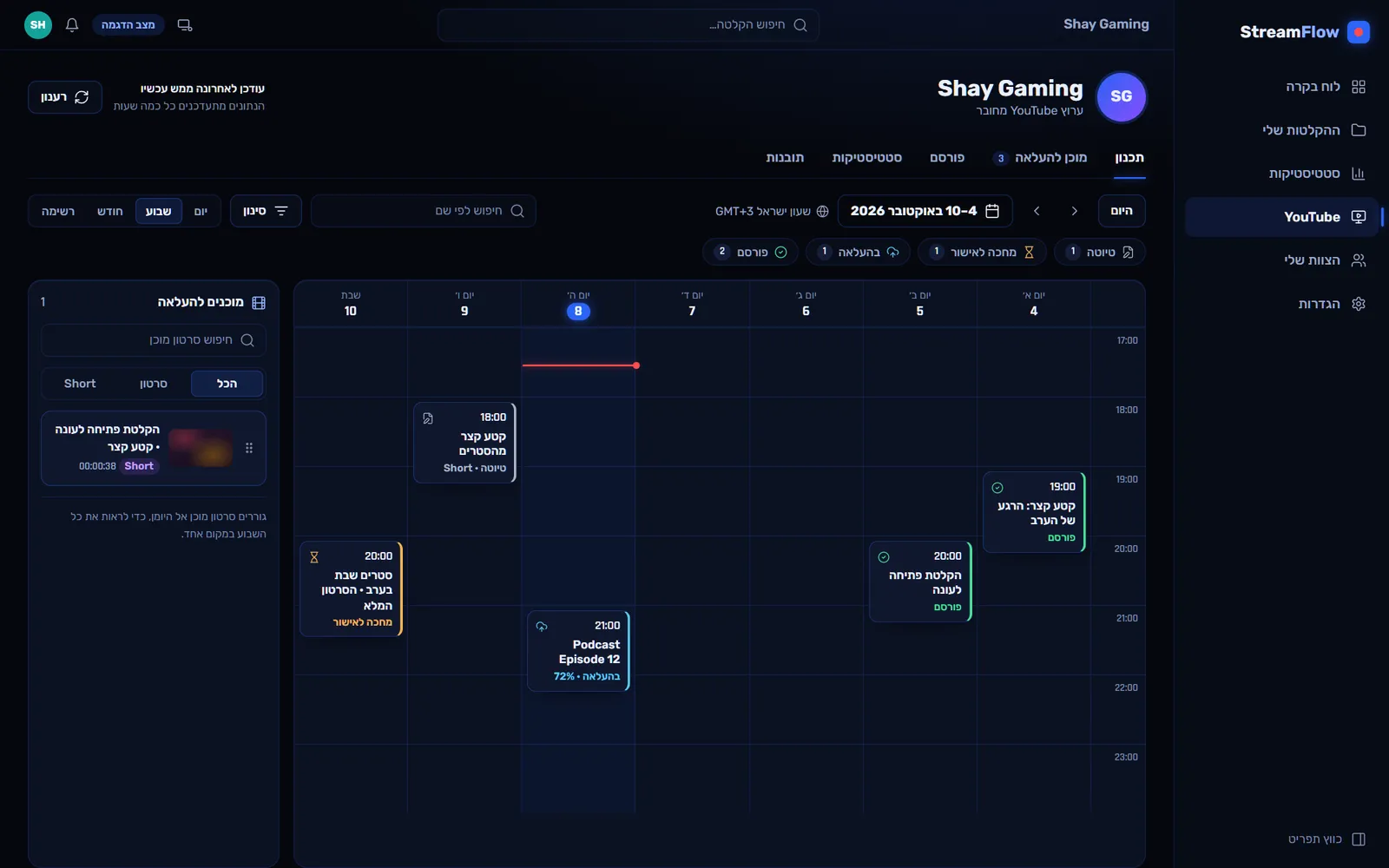
All of the week's videos in one place: what's in draft, what's awaiting approval and what's already live.
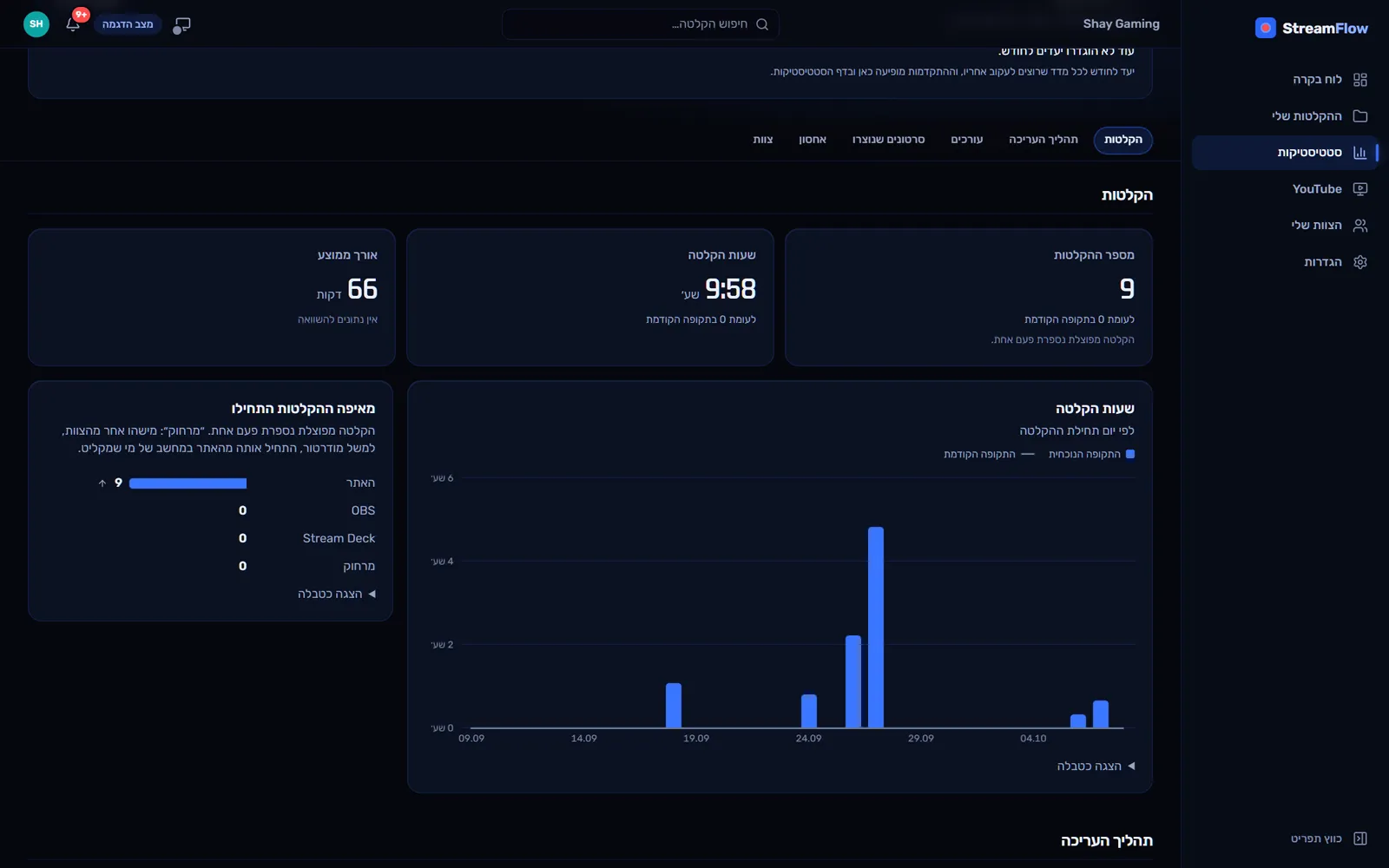
How many recordings, how many hours recorded, and how it breaks down by day.
Solo or with a team
Works solo. Works with a team, too.
The streamer who does it all
- Record and edit on the same site
- Cut silences instead of scrubbing the whole stream
- A calendar that shows what goes up this week
A channel with an editor, a moderator and a team
- Everyone gets their own permissions
- A moderator starts recording remotely
- The editor gets the recording with no links to send
Illustration: the moderator starts a recording remotely, and the streamer's screen shows "Recording". When it ends, the recording goes to the editor marked "Assigned to you", and everyone on the team has their own permissions.
Your next videogoes from start to finish right here.
Open a free account, connect OBS once, and start recording.
Free to start. No credit card needed.